E2 Editor ยท How it works

Your page. Your Discord.
Your edits.

Every E2 member page has a built in editor, and your Discord account is the key. Log in with Discord, tap one small Edit button, and your page unlocks. Nobody else can edit it, ever. Here is the whole thing, in five short steps.

1Open your pageโ†’ 2Continue with Discordโ†’ 3Tap Edit this pageโ†’ 4Write and Publish
Show me the steps New here? Start with Level 1
1

Open your page and tap Editor login

Go to your E2 page (it looks like e2.life/yourname) and scroll to the very bottom. In the footer you will find a small link that says Editor login. Tap it. You can also go straight to e2.life/yourname/login.
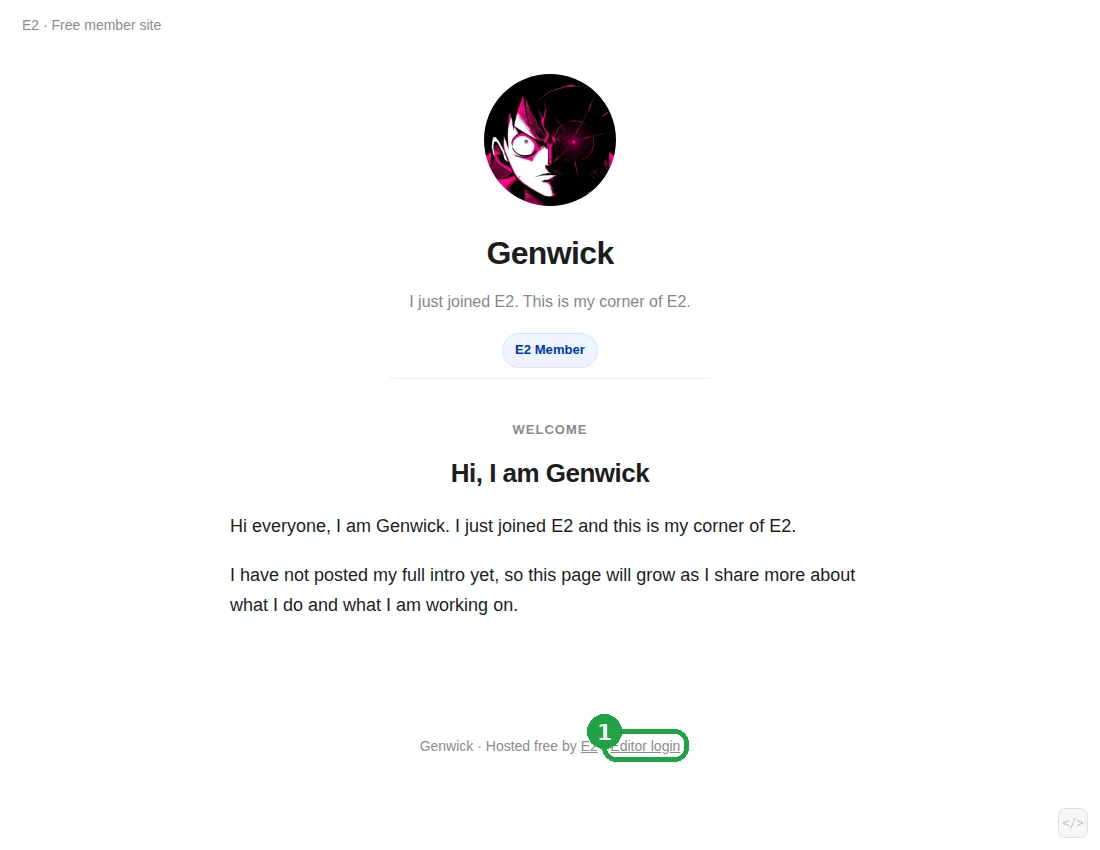
A member page on E2 with the Editor login link at the bottom highlighted

Genwick's page, with the Editor login link circled at the bottom. Your page has the same link, in the same place.

2

Tap the blue Continue with Discord button

The login page tells you whose page it is, then offers one big blue button. Tap Continue with Discord and approve it in Discord. Use the same Discord account you use in the E2 server, the one your page was made for. Discord only confirms your name, your photo, and your Discord ID. Nothing is ever posted as you.
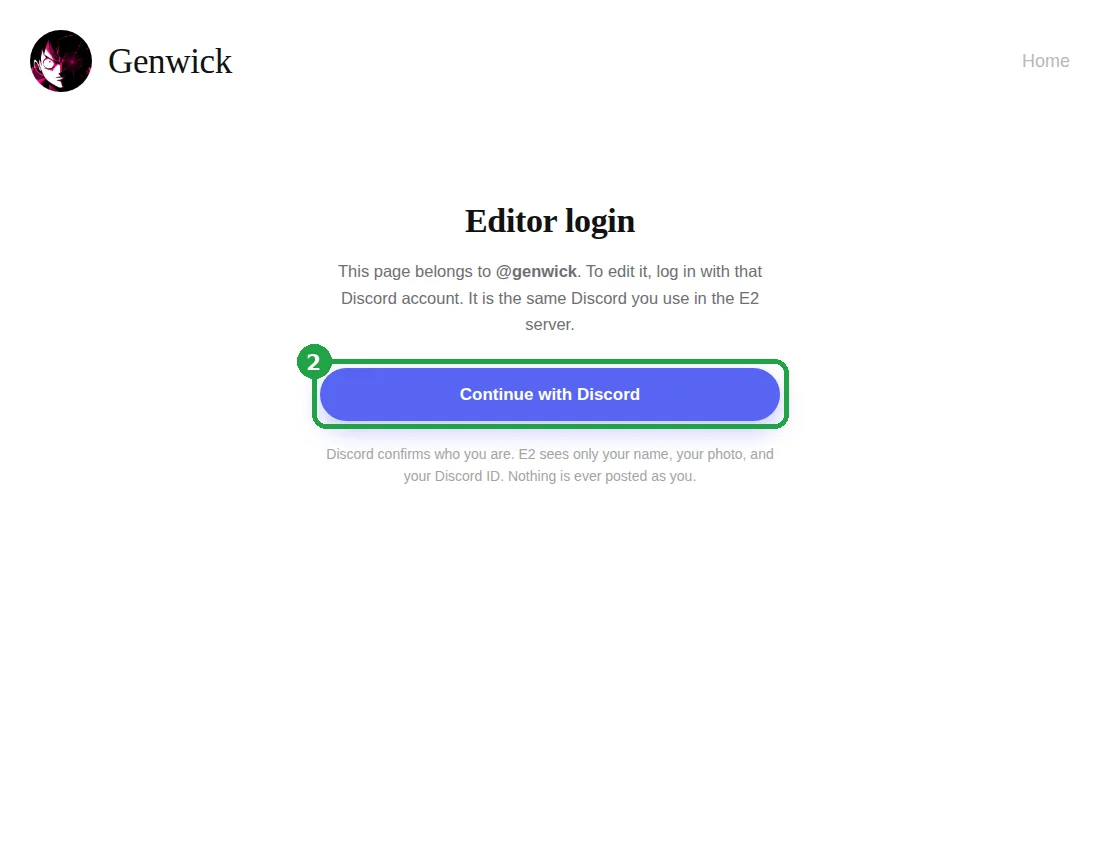
The editor login page with the Continue with Discord button highlighted

That is the whole login. No password to remember, and no typing your name: Discord proves it is really you.

3

Tap Edit this page, bottom right

Discord sends you straight back to your own page. It looks just like normal, except for one small button in the bottom right corner: Edit this page. That button only appears for the page's owner, when they are logged in with Discord. No button means you are not logged in as the owner (the fixes are at the bottom of this page). Tap it when you are ready to change something.
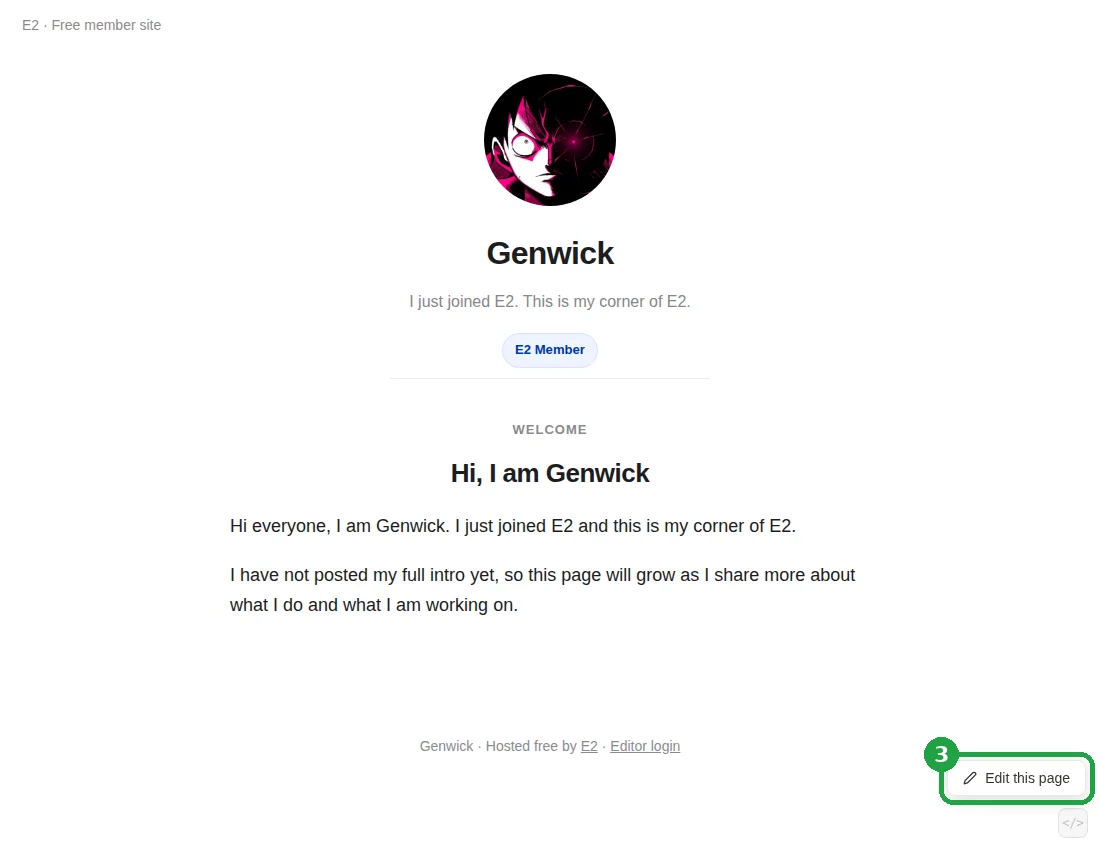
A member page with the small Edit this page button in the bottom right corner highlighted

Genwick's page after logging in. Visitors never see this button. Only Genwick does, and only while logged in as Genwick.

4

Write right on the page, then Publish

Tapping Edit opens a small white panel in the bottom right corner with your name on it. Now everything on the page is editable. Write, fix, rearrange, and when it looks right, tap the black Publish button in the panel. Done closes the panel when you finish.
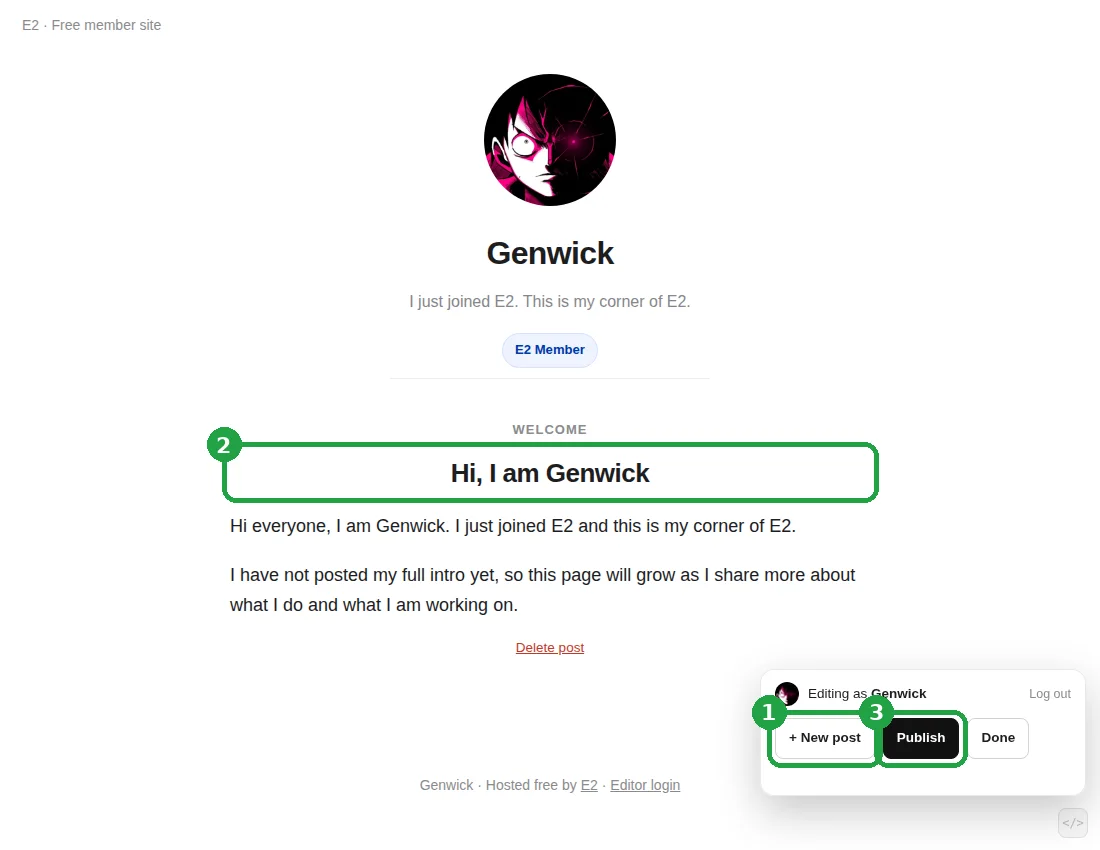
A member page being edited, with New post and Publish in the small panel at the bottom right, and the post title highlighted
5

Look for the green check

When your publish lands, a green check pops up: Post published. Live for everyone. That is it. Your page is updated, and anyone who visits sees the new version.
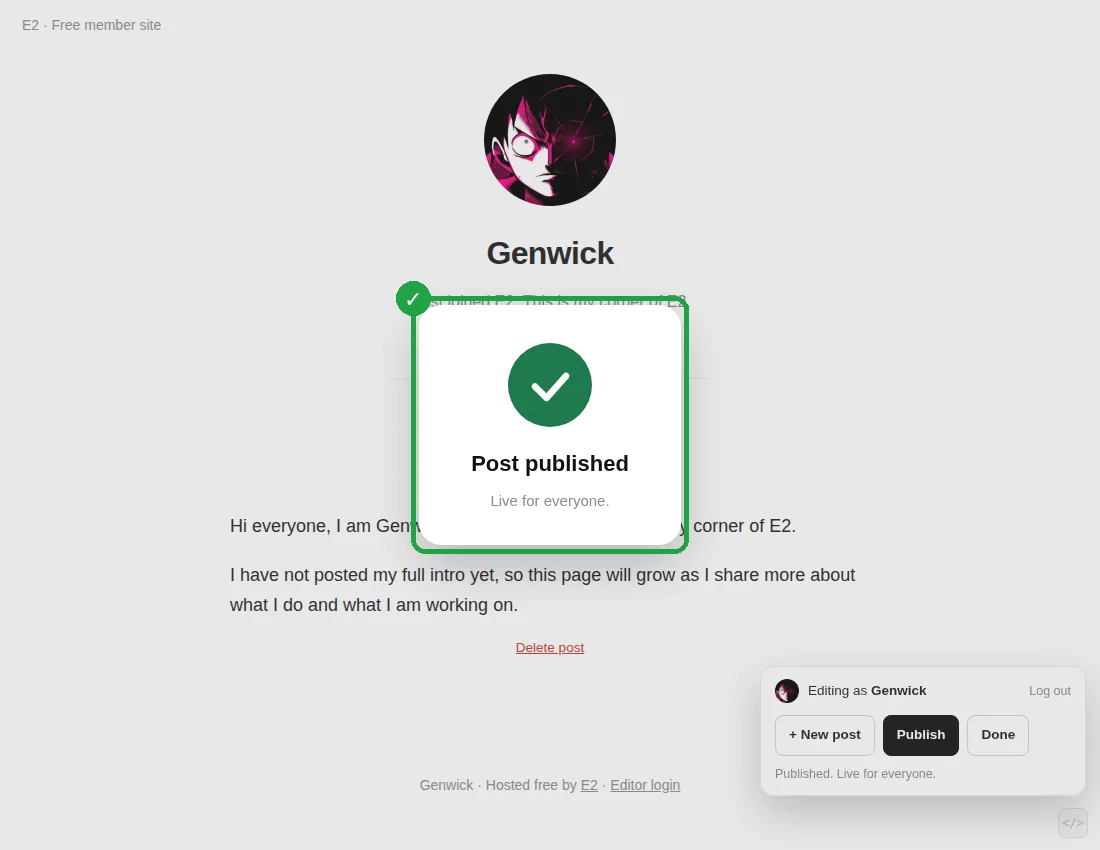
The green Post published confirmation card after publishing, with the editor panel still open at the bottom right

No green check? Your changes are still saved as a draft on your device. Check your connection and tap Publish again.

What you can do in the editor

Everything happens right on your page. What you see while editing is what your visitors get.

๐Ÿ“

Write a new post

Tap the Edit button, then + New post in the little panel. A blank post appears at the top of your page with the title already selected. Type your title, then click the text below and write.

โœ๏ธ

Fix anything in place

Click any title or paragraph and type. Typos, updates, new links: edit them where they sit. Formatting shortcuts are Ctrl/Cmd + B, I, and U.

๐Ÿ–ผ๏ธ

Add a picture

On a computer, drag an image file from your folder and drop it onto a post. It becomes that post's picture. The editor shrinks big photos automatically.

๐Ÿ—‘๏ธ

Delete a post

While editing, every post has a small red Delete post link under it. Tap it, then tap Publish, and the post is gone for everyone.

๐Ÿ’พ

Drafts save themselves

Your work in progress saves to your device as you type, and comes back if you close the tab. Nothing goes public until you tap Publish.

๐Ÿšช

Log out when you are done

Log out sits at the top right of the editor panel. Log out on shared computers. Your login lasts about 30 days on your own device.

Two buttons live in the bottom right corner. Here is the difference.

The white Edit this page button is the editor. It appears only for the page's owner, after logging in with Discord. Under it sits a much smaller gray </> button that everyone can see. That one is not the editor: it is the take your site with you button. It shows you all of your page's code, with Copy and Download buttons, because your site is yours. No lock in, ever.

Only your Discord can edit your page.

Editing is tied to your Discord ID, and it is checked again on our servers every single time you tap Publish. Typing your name is not a login anymore, a borrowed link does nothing, and a friend's Discord cannot touch your page. Log in with the wrong account and the login page will simply tell you, and offer a one tap switch.

Something not working?

Three quick checks fix almost everything.

Now make your page yours.

Your first post can be simple: who you are, what you are working on, and one link to your work. Two minutes with the editor and your corner of E2 is alive.